Kindred Creations Home                           Kindred Creations Shop                           Kindred Creations Facebook Page                                 Kindred Creations On Pinterest

Wednesday, November 12, 2008

If you love hand-stitching on your layouts, here's a storage solution.

I created a little matchbook to store some of my sewing needles with my scrapping supplies. I did have them stored in a little box, but the lid wasn't too secure so that they might spill easily and it was rather difficult to remove them without accidentally poking myself.


So here's some directions on how I made mine:
Take a 2"x10" strip of cardstock weight patterned paper, and fold it at 1", 5 1/2" and at 5 3/4". Fold this into a matchbook shape. Next, take a 2"x4 1/2" strip of thin boxboard, and glue it to the inside back of the matchbook for added support. Next take a 2"x4 1/2" piece of cardstock and fold it at 1 1/2" and at 2 1/4". Pierced the fold lines at even intervals with a small/thin needle. Tuck the longer end (to the fold line) into the small flap of the matchbook. Fold the large flap under the smaller one; staple the small flap closed, making sure you don't catch the top flap. Decorate as desired, and then insert the needles through the pierced holes.

Have fun sewing on your layouts.

Sunday, November 9, 2008

Lose Weight Without Dieting

How many times have you read that??? A kazillion? Well, in this post, I will attempt to show you how to shave off a few unwanted pounds with the magic of photo editing!

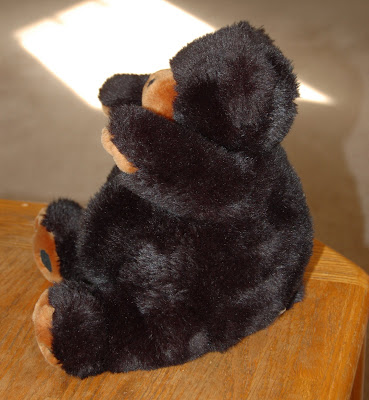
Meet Mr. Fat Bear. That's his name, I didn't give it to him... we call him Fat Bear for short..


Here is a quick, down and dirty way to slim him down...
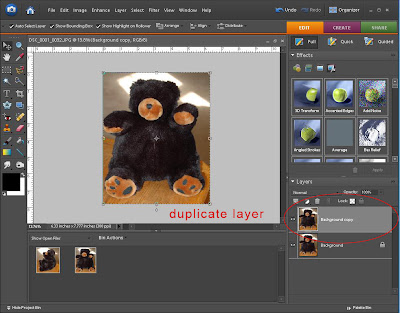

duplicate your layer


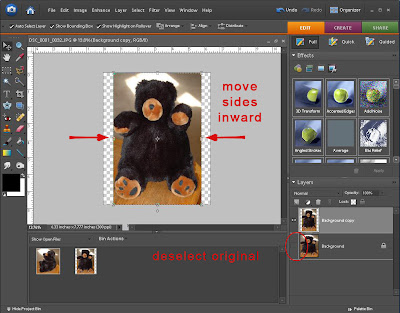
deselect your original layer so it is now hidden, then with your selection tool move the sides in - just a bit... not too much or your image will looked "squished". Just enough to shave off a bit of bulge!


Here is another way... great for arms and profile shots...

Hey Mr. Fat Bear... how's it going?


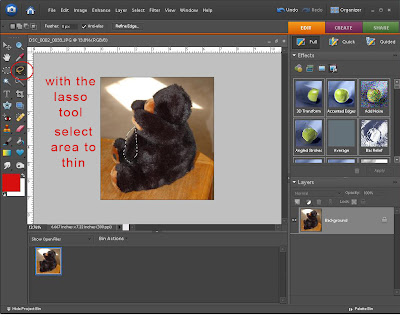
With your lasso tool, select area for slimming


Go to your filter gallery and find "liquify"

Once there, your view changes, just to the area you have selected. Size your brush in accordance to your photo size. Here my brush size is 64 pixels. Move your brush in an upward - inward motion.
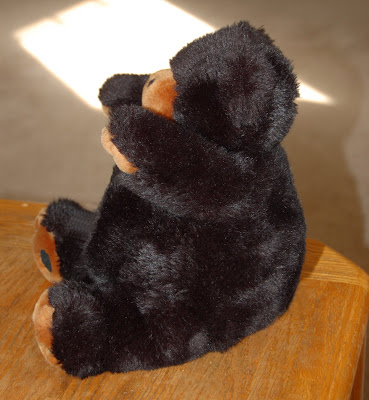
Now for my finished product, I slimmed his hind end too a bit. I did find that I had to "clean up" my background a bit, because his fur left me some "messies"...

Meet the new and improved Mr. Fat Bear!


With a bit of patience and a bit of time you can master this technique... on people its easier... no fur to deal with!

Monday, November 3, 2008

One of KC's latest freebies

Just wanted to share one of KC's freebies. Click on the picture to download it. We also have freebies in our forum and other freebies in the store, you don't want to miss.

Wednesday, October 29, 2008

Spetember DT picks

I'm sure you're all anxiously waiting to see the September DT picks, so here they are:


Remember the only way your LO will make it to the blog is by participating in the DT challenges, so head on over to the forum and see what kind of exciting challenges we have for you this month.

Tuesday, October 28, 2008

A Digital Freebie

Here is a freebie for all of you. If you click on the image it will take you to the download page. I hope you enjoy it!


If you enjoyed this freebie there are even more of them in the Freebies board on the forum as well as the Kindred Creations Store. Don't forget to check them out!

Monday, October 27, 2008

Colour

One of the first things I decide on when I am designing a layout or a digital kit is a colour palette. For a layout I usually pick 3 or 4 colours and for a kit I pick 5. My favourite resource for coming up with colour palettes is the Adobe Kuler site. You can see the thousands of palettes that have already been created, change an existing palette to suit your colour scheme or create a completely new palette. Once you have decided on your palette, you can download it as a .ase file to use in Photoshop and other editing programs.

Here is a palette I put together for Halloween.


And here is how I used those colours in a layout.


Now go visit the Kuler site, create a palette of your own and then use it as inspiration for a new layout. Don't forget to post it in the Kindred Creations gallery for us to look at!

Tuesday, October 21, 2008

Text In A Circle

I've seen these instructions posted in numerous places, so thought it would be good to share here as well. It's awesome to see it done on a page!!

In Microsoft word (2000 and up):Open a new document.

1. From the top tool bar choose ‘Insert' --‘Picture’-- ‘Word Art’ OR click on the WordArt icon from the bottom tool bar (the tilted blue A)
2. Click on the sample that looks like an arch (in my program, it is the third on the top); click okay.
3. Type in the text you want. You can change font and size here. *indent one space at the beginning of your type. Click ‘okay’
4. This will display it in your document…click on the image so the box forms around it. Your WordArt tool bar should be visible now.
5. On the tool bar there is an “abc” icon…when the cursor is over it, it should read “WordArt shape”
6. When you click on this, you can see several different shapes…click on the one that looks like the letter O…once you do this, your text will look a little bit squashed…just resize it like you would any other image. To make a perfect circle-- right click on your image--choose Format WordArt--Size--and change the width and height so they are the same. * You can make your circle the exact size of your punch, circle etc. by measuring them before hand and inserting those measurements.

( I wanna thank Skrapnfreak for posting these for me to copy over here! )